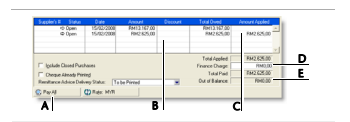
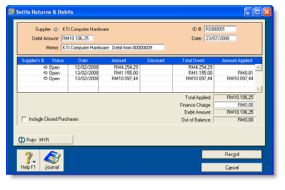
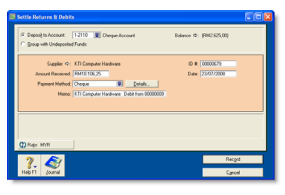
You can enter a purchase as a quote, order, receive item or bill.
- You can enter a quote to store an estimate or quote you received from one of your suppliers. A quote has no impact on your inventory levels and can be changed to an order or a purchase when you are ready to purchase.
- An order is a purchase where no service or item has been received. While orders do not affect your financial figures, they are included in your inventory reports. Orders do not create transactions unless you have paid a deposit to the supplier. An order can be changed to a purchase but not to a quote.
- A receive item purchase records the receipt of items you have ordered but have not yet been billed for. When you record items received, the item is added to your inventory and the cost of the item is added to an accrual account for inventory items until you record a purchase for it. You record items received against an order.
- A bill is usually created when you receive the items or services you ordered and are required to pay the supplier (that is, you have been charged for the purchase). Recording a bill will update the appropriate accounts, including the account for tracking payables. Bills can be open (unpaid), closed (paid) or debit (negative purchase). A bill cannot be changed to a quote or an order.
You can enter a purchase in:
- the Purchases window
- the Bank Register window
The procedure described in this section is for entering purchases in the Purchases window, which enables you to record full details about a transaction.
Bank Register window Entering a purchase in the Bank Register window is a fast way to enter a purchase transaction. However, you can enter less detail about the purchase than if you entered it in the Purchases window. For more information, see 'To enter a transaction in the Bank Register window'.
Entering a purchase transaction
Complete the following steps to enter a purchase transaction:
Task 1: Enter information about the supplier
- Go to the Purchases command centre and click Enter Purchases. The Purchases window appears.
- In the Supplier field, select the supplier's name.
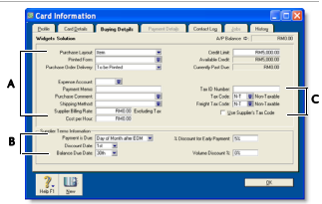
The terms shown in the Purchases window are the terms recorded in the supplier's card.
- Complete the fields as described in the table below.
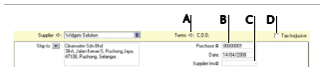
| A |
Click the zoom arrow  to alter the terms for this purchase only. If you want to change the credit terms for all future purchases to this supplier, you must make that change on the Buying Details tab of the supplier's card. to alter the terms for this purchase only. If you want to change the credit terms for all future purchases to this supplier, you must make that change on the Buying Details tab of the supplier's card. |
| B |
Type the purchase order number or accept the default number in the Purchase # field. |
| C |
If the supplier gave you an invoice number, enter it in the Supplier Inv# field. |
| D |
If the purchase amounts you want to enter include tax, select the Tax Inclusive option. Do not change this option after entering an amount in the Amount column. |
Task 2: Choose the type of purchase
Choose the status and layout for the purchase. The default layout displayed in the Purchases window is determined by the selection you made when you set up purchase details (using the Purchases Easy Setup Assistant) or created the supplier's card.
- Check whether the default layout is appropriate.
There are four layouts to choose from: Service, Item, Professional and Miscellaneous. To change the default layout:
- Click Layout. The Select Layout window appears.
- Choose the layout you want to use and click OK.
- Select the status from the list in the top left corner of the window: Quote, Order, Receive Item or Purchase. Receive Item only appears if you choose Item layout.
Task 3: Enter the items or services you are purchasing
The scrolling list in the middle of the Purchases window is where you enter details of what you are buying. In this area, you enter item numbers, descriptions, account numbers (or account names, depending on your selection in the Preferences window) and other information about your transaction.
One row in the scrolling list is one line item of the transaction. You can enter as many line items for a purchase as you want.
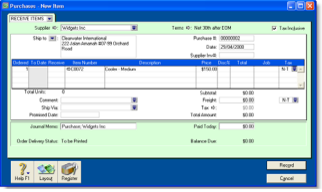
The fields in the scrolling list differ according to the type of purchase you are creating. The following illustration shows the fields for a purchase with an Item layout and a Bill status.
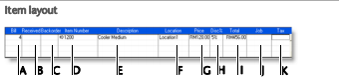
| A |
Bill |
The quantity you have been invoiced for |
| B |
Received |
This field is read-only. It displays the quantity of items received. For more information, see 'Receiving items without a supplier invoice'. |
| C |
Backorder |
The quantity of the item back ordered. An order for this amount will be created automatically when you click Record. |
| D |
Item number |
Pressing TAB here displays the item list from which you can choose the item being purchased. |
| E |
Description |
A description of the item appears automatically. You can change this if you want. |
| F |
Location |
[MYOB Premier range only] If you store this item in multiple locations, you can select the location where the item will be received. For more information, see 'Multiple inventory locations'. |
| G |
Price |
The price of the item appears automatically. You can change this if you want. |
| H |
Disc% |
[Optional] The volume discount as a percentage. |
| I |
Total |
The total price is calculated automatically. |
| J |
Job |
[Optional] Selecting a job number here assigns a line item to a specific job. For more information about jobs, see 'Setting up jobs and sub-job'. |
| K |
Tax |
Type or select a tax code for the line item. |
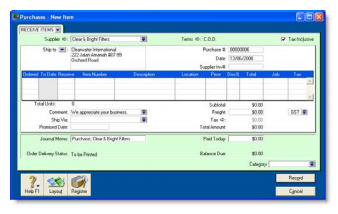
The following illustration shows the fields for a purchase with a Service layout and a Bill status. This also applies to the Professional and Miscellaneous layouts.
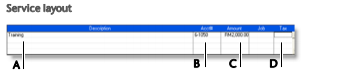
| A |
Description |
A description of the goods or services purchased. |
| B |
Acct # or Account Name |
The account to assign to the purchase. Pressing TAB here displays the accounts list from which you can choose an account. This should be an expense or cost of sales account. You should not select your payables account for ordinary purchases. |
| C |
Amount |
The amount you have been invoiced. |
| D |
Tax |
Type or select a tax code for the line item. |
NOTE : Add lines, subtotals and headers to purchases You can add lines, headers and subtotals to purchases to make it easy to separate and subtotal different groups of line items on one purchase. For more information, see 'Adding lines, headers and subtotals to purchases'.
Task 4: Enter additional information about the purchase
The fields that appear at the bottom of the Purchases window differ, depending on the type of purchase you are creating.
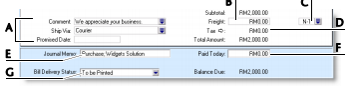
| A |
Optional fields |
Enter optional details, such as a comment, shipping method and the date the goods or services were promised. |
| B |
Freight |
Type any charges for freight. |
| C |
Freight tax |
Type or select the tax code for the freight charges. |
| D |
Tax |
Click the zoom arrow if you want to view or change the tax amounts assigned to the sale |
| E |
Journal Memo |
The journal memo is generated automatically. You can change it if you want. |
| F |
Paid today |
Type an amount here to indicate how much money you paid at the time of the purchase or, if you are creating an order, how much money you gave as a deposit. |
| G |
Bill Delivery Status |
If you want to print or email the purchase in a batch, select the required delivery method from the list. For more information, see 'Sending forms in a batch'. |
NOTE : Recap transaction Before you record this transaction, you can use the recap transaction feature to view the journal entries that will be created when the transaction is recorded. This is useful for confirming that the journal entries are posted to the correct accounts. To recap, choose Recap Transaction from the Edit menu.
Task 5: Complete the purchase
After you have finished entering the details in the Purchases window, there are several ways to complete the transaction.
TIP : Save the purchase as a recurring purchase Click Save as Recurring. In the Edit Recurring Schedule window, enter the necessary information and click Save. For more information, see 'Recurring transactions'.
- If you want to record the purchase without printing or sending it, click Record.
- If you want to record the purchase and print, send or save it as a PDF, complete the relevant procedure below.
| To |
Do this |
| Print |
Click Print and choose the type of form you want to use. For more information about printing, see Chapter 13, 'Forms,'. |
| Print preview |
Click Print and choose Preview to preview the purchases form for this transaction. Note that the transaction will be recorded before the form is displayed. |
| Email |
Click Send To and choose Email. Review and make entries in the Email window and click Send. The email, which will include a PDF (Portable Document Format) attachment, will be sent to the Outbox of your default email software. Send the email from your email software. |
To delete a blank line, line item, header or subtotal
- In the Purchases window, click anywhere on the blank line, line item, header or subtotal you want to delete.
- Go to the Edit menu and choose Delete Line.
Adding lines, headers and subtotals to purchases
You can add lines, headers and subtotals to purchases.
To insert a blank line
- In the Purchases window, click in the line below where the blank line is to appear.
- Go to the Edit menu and choose Insert Line.
To insert a header
You can group several line items by inserting a header.
- In the Purchases window, click in the line below where the header is to appear
- Go to the Edit menu and choose Insert Header. A blank line will appear in the scrolling list with the cursor positioned in the Description column.
- Type the text for the header. The text appears in grey.

- Press TAB to complete the header entry.
To insert a subtotal
- In the Purchases window, click in the line below the items to be subtotalled.
- Go to the Edit menu and choose Insert Subtotal. A line appears displaying the subtotal of the individual amounts that appear above the subtotal line and below the last subtotal, if there is one.

To delete a blank line, line item, header or subtotal
- In the Purchases window, click anywhere on the blank line, line item, header or subtotal you want to delete.
- Go to the Edit menu and choose Delete Line
 .
.
 .
.