Before you begin to track your inventory, you need to create a record for each item of inventory. An item can be:
- a physical unit that your company may buy, sell or inventory
- a service that your company wants to include on item invoices, for example, 'Shipping', 'Handling', and so on.
When you create an item record, you can choose to buy, sell or inventory the item. These selections determine what functions you can use the item with. For example, if you want to include a service item on an invoice (such as installation), you need to specify that you sell the item.
An item that you inventory is an item whose quantities and values you want to track. Maintaining an accurate record of on hand levels of these items requires you to do regular maintenance tasks. For example, you may need to record an inventory adjustment to write-off damaged stock.
| Select... | For... |
| I Buy this Item |
Items or services you want to include on an item purchase order. This includes items that are not for resale, and you do not need to track their quantities and values. For example, items for office use only. It can also include raw materials you use as components to build other inventory items. |
| I Sell this Item | Items or services you want to include on an item invoice. |
| I Inventory this Item |
Items you buy or sell and whose quantity and values you want to track. It can also include intermediate goods used in the productions process, such as parts used to manufacture finished goods. |
Inventory opening balances If you have existing on-hand quantities of inventory items, you need to record the opening inventory level for each item. For more information, see 'Enter your inventory opening balances'.
To create an item
- Go to the Inventory command centre and click Items List. The Items List window appears
- Click New. The Item Information window appears.
- In the Item Number field, type a unique identifier and press TAB.
- In the Name field, type the name of the new item
Tip: Copy From button To copy another item's information to this item record, click Copy From. From the displayed list, choose the item whose information you want to copy. All information for that item will be copied to the current item record except the item number, item name, supplier number, auto-build information and history information.
- Specify whether you buy, sell and/or inventory this item by selecting the relevant options. As you select the options, fields appear next to them. These fields change according to the combination of selections you make.
-
Enter the appropriate accounts:
- In the Cost of Sales Account field, type or select the account you want to use to record the costs associated with producing this item.
- In the Income Account for Tracking Sales field, type or select the account you want to use to record the income you receive from the sale of this item.
- In the Asset Account for Item Inventory field, type or select the account you want to use to record the total value of this item.
- In the Expense Account for Tracking Costs field, type or select the account you want to use to record costs associated with purchasing this item.
-
Click the Buying Details tab. The Buying Details view of the Item Information window appears. Complete the fields as explained below.
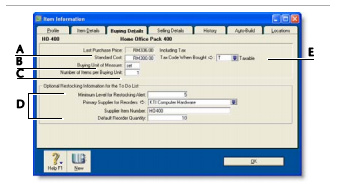
- [Optional] Enter the standard cost of an item. To use the standard cost price as the default price of an item, select Use Standard Cost as the Default Price on Purchase Orders and Bills preference in the Preferences window (Inventory tab).
- Type the unit of measure (such as 'each' or 'unit') by which you purchase the item. The buying unit is printed on the purchase order. For example, if you buy eggs by the carton unit, when you order five units in a purchase you are ordering five cartons.
- Enter the number of items that comprise a single buying unit. This is the number that is added to your on-hand inventory. For example, if you buy eggs by the carton unit but want to track their purchase individually, enter 12 as the number of items per buying unit. When you order one carton unit, your item inventory is updated by twelve items. If you leave this field blank, the value defaults to one.
-
Enter the restocking information:
- Enter the minimum level of this item you want to keep in your inventory. When you drop below this level, a re-order reminder appears in the To Do List.
- Enter the supplier from whom you usually re-order this item.
- Enter the supplier's number for the item.
- Enter a re-order level quantity for the item here. If you have set a minimum level for restocking alert, you can create an order for the items easily using the Stock Alert tab in the To Do List. The default quantity showing on the order will be taken from this field.
- Choose the tax code you want to use when you purchase this item. Note that you can override the tax code when you record the purchase.
-
Click the Selling Details tab. The Selling Details view of the Item Information window appears. Complete the fields in this tab as explained below.
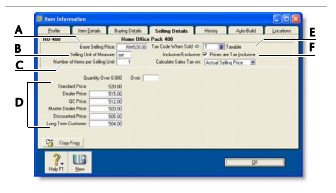
- Type the retail price of one selling unit.
- Type the selling unit of the item (such as 'each' or 'unit'). You can type up to five characters. The selling unit is printed on the item invoice. If for example you sell by the six-pack, when you sell five units, you will be selling five six-packs.
- Type the number of items that comprise a single unit in this field. This is the number that is subtracted from your on-hand inventory for every selling unit. For example, if you sell by the six-pack, enter 6 as the number of items per selling unit. When you sell one six-pack, your item inventory is reduced by six items.
- [MYOB Premier range only] You can set pricing levels for different customers. See 'Creating custom price levels'.
- Select the tax code you want to use when you sell this item. Note that you can override the tax code on invoices.
- If you want to indicate that all prices on the Selling Details tab are tax inclusive, select the Prices are Tax Inclusive option. Deselect this option to indicate that the prices are tax exclusive.
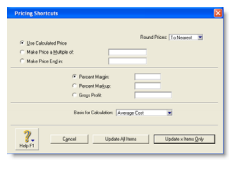
Average Cost, Last Cost and Standard Cost
Average Cost is calculated as the total cost of an item (the total amount you have paid to purchase the item or the cost entered when you transferred the item into inventory) divided by the number of units of that item you have on hand.
Last Cost is the most recent purchase price for the item.
Standard Cost can be used instead of the last purchase price as the default price on purchases. To use the standard cost price as the default price, select Use Standard Cost as the Default Price on Purchase Orders and Bills option in the Preferences window (Inventory tab).
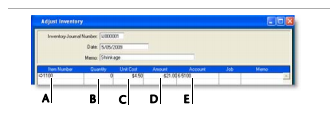





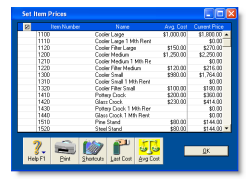
 ) next to the items that require a price update.