Set up accounts
Accounts provide a means for grouping similar transactions. For example, if your business pays rent for the use of its
premises, you would create a rent account and then allocate all rent payments to that account.
The accounts you use for your business are grouped in an accounts list.
NOTE : Do you need to complete this task' In this case, go to 'Enter account opening balances'.
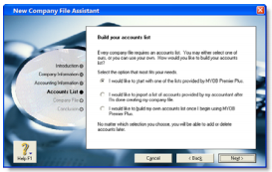
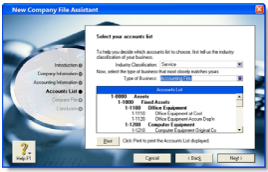
When you created your company file, you selected a default accounts list to start with. This list may already have the
accounts you need. If not, you can change the list to suit your needs. If you are unsure, ask your accountant which accounts you should create, edit or delete.
Account numbers - Each account is identified by a unique five digit number. The first digit indicates the account's classification (for example, accounts starting with 1 are asset accounts). The remaining four digits determine its location within the classification. The lower the number, the higher up in the list it appears. For example, account 1-1100 appears above 1-1200.
Account classifications and types - The accounts list groups accounts into eight classifications'Assets, Liabilities, Equity, Income, Cost of Sales, Expenses, Other Income and Other Expenses. Within each account classification there is at least one account type.
Account classifications and types are described in the following table.
| Classification |
Type |
Description |
| Asset(1-xxxx) |
Bank |
Money in the bank, for example, in a cheque or savings account. |
| Accounts Receivable |
Money owed to you by your customers. |
| Other Current Asset |
Assets that, if required, can be turned into cash within a year. These may include your term deposits. |
| Fixed Asset |
Assets which have a long life, for example, buildings, cars and computers. Fixed assets are usually depreciated. |
| Other Asset |
Other assets you own such as loans made to others and goodwill. |
| Liability (2-xxxx) |
Credit Card |
Repayments required to service credit card debt. |
| Accounts Payable |
Money owed by you to your suppliers. |
| Other Current Liability |
Money owed by you that is due in less than a year. |
| Long Term Liability |
Money owed by you that is due in more than one year, for example, a business loan |
| Other Liability |
Other money you owe. |
| Equity (3-xxxx) |
Equity |
The business's net worth, that is, its assets minus its liabilities. Common equity accounts are
current year earnings, retained earnings and shareholders' equity. |
| Income(4-xxxx) |
Income |
Revenue from the sale of goods and services. |
| Cost of Sales(5-xxxx) |
Cost of Sales |
The direct cost of selling your goods and providing services, for example, purchase costs and freight charges |
| Expense(6-xxxx) |
Expense |
The day-to-day expenses of running your business, for example, utility bills, employee wages and cleaning. |
| Other Income(8-xxxx) |
Other Income |
Other revenues, for example, interest earned on savings and dividends paid from shares. |
| Other Expense(9-xxxx) |
Other Expense |
Other expenses, for example, interest charged. |
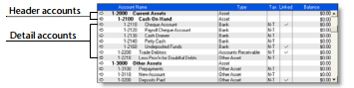
Header accounts - Your accounts list consists of detail accounts (the accounts to which you allocate transactions) and header accounts. Header accounts group related detail accounts to help you organise your accounts list.
For example, you could group your telephone, electricity and gas expense accounts using a Utilities header account. This
makes it easier for you to locate the utility expense accounts in the accounts list and to see your combined utility expenses.
You group accounts by indenting the detail accounts located directly below a header account.
Note:
- You cannot allocate transactions to a header account.
- The balance of a header account is the sum of the detail accounts indented directly below it.
- You can create up to three header account levels.
Setting up accounts
To create an account
- Go to the Accounts command centre and click Accounts List. The Accounts List window appears.
- Click New. The Edit Accounts window appears.
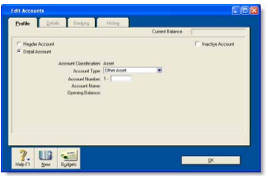
- If you want to create a detail account, select the Detail Account option.
- Select the account type from the Account Type list. The Account Classification field changes according to the
selection you make. For more information on account classifications, see 'Account classifications and types'.
- Enter a four-digit number for the account in the Account Number field. The number must be unique within each account classification.
- Press TAB and type a name for the account.
- Click the Details tab.

- If you want, type a brief description of the account in the Description field.
- In the Tax Code field, select the tax code that you use most often with transactions that will be posted to this account.
- If you are creating an asset, liability or equity account (other than an asset that has the account type of Bank), select an option from the Classification for Statement of Cash Flows list. Classifying the accounts allows you to generate a statement of cash flows. This report shows how your cash position has changed over time, profit earned and where your cash was spent. If you're unsure about which classification to use, consult your accountant or an MYOB Certified Consultant.
- [MYOB Premier range only] If you enter transactions in multiple currencies, type or select the currency for
transactions that will be posted to this account in the Currency field. You will need to have indicated that you deal in multiple currencies in your preferences. See 'Set up preferences'.
- If you are creating a bank or credit card account, and you want to keep a record of your bank account details, click the Banking tab and enter your account details.
- [Detail accounts only] If you want to enter historical balances, complete the Last FY column on the History tab.
That way you can compare the year's monthly account balances with those of the corresponding months last year.
- [Detail accounts only] If you want to set up a budget:
- Click Budgets. The Prepare Budgets window appears.
- Type the budget amounts in the monthly columns.
- Click Close.
- Click OK when you have finished. The account you created now appears in your accounts list.
To group detail accounts with a header account
You group accounts by indenting the accounts located below a header account.
- Go to the Accounts command centre and click Accounts List. The Accounts List window appears.