4   Banking

This chapter shows you how to record the cheques you have written, the cheques and credit card payments you have received, your credit card purchases, your credit card payments and your ATM and Internet withdrawals and transfers.

MYOB software can handle any number of bank and credit card accounts and allocate them to as many accounts as you like. If you are accustomed to a manual multi-column cashbook system, you can think of your MYOB software as having the capacity to run multiple cashbooks with an infinite number of columns.

Receiving money

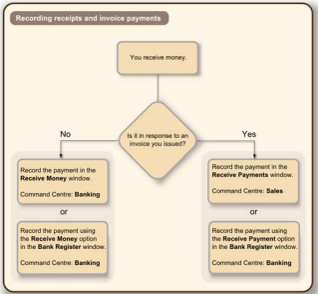
In your MYOB software, the term receiving money refers specifically to recording receipts other than payments relating to invoices. These include equity injections, interest, adjustments and so on. These types of receipts can be entered using the Receive Money window or by selecting the Receive Money transaction type in the Bank Register window.

Note that in your MYOB software, invoices are processed through the Sales command centre. So any payments received against invoices you have issued need to be entered using the Receive Payments window or by selecting the Receive Payment transaction type in the Bank Register window. See 'Receiving payments'for more information.

The options for recording receipts and invoice payments are summarised in the following diagram.
Printing payment receipts You can print payment receipts for transactions that you enter in the Receive Money and Bank Register windows. For more information about printing payment receipts, see 'Printing payment receipts.

There are two ways to record money received without an invoice:

  • in the Receive Money window
  • in the Bank Register window.

The Receive Money window lets you record more details about the receipt and to allocate the receipt to more than one account. This is the procedure covered in this section. If you want to use the Bank Register window - which lets you enter a receipt with minimum details - see 'To enter a transaction in the Bank Register window'.

To record money you receive

  1. Go to the Banking command centre and click Receive Money.
  2. Choose one of the following options:
    • Deposit to Account. In the Deposit to Account field, type or select the required bank account.
    • Group with Undeposited Funds. Choose this option if you want the deposit to be recorded in the undeposited funds account. After you have grouped all the deposit transactions you want, you can make one bank deposit for all the undeposited funds. For more information, see 'Preparing a bank deposit'
  3. If the deposit amount includes tax, select the Tax Inclusive option. If it excludes tax, deselect this option.
  4. In the Payor field, type or select the payor's name.
  5. Enter the amount received.
  6. [Optional] In the Payment Method field, select the payment method.
  7. [Optional] To record additional details about the payment, such as a cheque number, click Details and record the details in the Applied Payment Details window that appears.
  8. Type the date of the payment.
  9. [Optional] Type a detailed comment in the Memo field to help you identify the payment later.
  10. Allocate the amount to the appropriate account or distribute it to a number of accounts, as described in the table below.
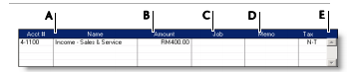
  11. A Type or select an account to assign the payment or part of the payment to.
    B Type the amount you want to assign to each account. The total amount in this column must equal the amount in the Amount Received field before you can record the transaction.
    C [Optional] Assign the amount to a job by entering the job code here.
    D [Optional] Type a memo for each entry in the transaction.
    E The tax code that is linked to the allocation account appears here automatically. You can change it or delete it if necessary.
  12. If you want to view or change the tax amounts assigned to the transaction, click the zoom arrow .
  13. If you want to assign the transaction to a particular category, select a category from the Category list.
  14. If you have not turned on category tracking, the Category field won't appear. (To turn on category tracking, go to the Setup menu, choose Preferences, click the System tab and select the Turn on Category Tracking option.) For more information, see 'Categories'.

  15. If you want to store the transaction as a recurring transaction, so that you can use it again, click Save as Recurring. In the Edit Recurring Schedule window, enter the necessary details and click Save. (For more information, see 'Recurring transactions'.)
  16. Complete the transaction in any one of the following ways:
    • To print and record the transaction, click Print.
    • To record the transaction, click Record.
  17. If you do not want to record the transaction at this time, click Cancel.
Preparing a bank deposit

When you want to deposit payments (such as credit card, cash and cheque payments) in a batch, you need to post the payments to a temporary holding account until you create a bank deposit. This holding account is known as an Undeposited Funds account.

You can post a customer payment to the Undeposited Funds account by selecting the Group with Undeposited Funds option in the Receive Money window or Receive Payments window when recording a payment.

When you make a bank deposit in a batch, funds are transferred from the Undeposited Funds account to the account of your choice as a single transaction. You can record the deposit in the Prepare Bank Deposit window.

To prepare a bank deposit

  1. Go to the Banking command centre and click Prepare Bank Deposit. The Prepare Bank Deposit window appears.
  2. In the Deposit to Account field, type or select the account into which the funds will be deposited.
  3. If you want to group payments by payment method, select the payment method in the Select Receipts by field. Select one or more payment types in the adjacent field. (For credit cards, select one or more credit card types.) Only payments made using that method are listed.
  4. Type a date to display undeposited funds up to and including that date.
  5. [Optional] To record the purpose of the transaction, type a description in the Memo field.
  6. Select the receipts you want to include in the bank deposit by marking the corresponding field in the Deposit column. Alternatively, if you want to select or deselect all receipts, click the select icon ( ) at the top of the Deposits column.
  7. If you want to enter a transaction to adjust the deposit amounts, click Deposit Adjustment. Enter transaction fees charged by your credit card provider if the fees are deducted before payments are deposited in your account
  8. You may also adjust a deposit if, instead of depositing the total amount of a deposit, you keep part of the deposit as cash. In the Bank and Deposit Adjustments window:

    1. Type the fees and cash back and/or the adjustment amount.
    2. Type the date and an ID number.
    3. Select an expense account for the fees and cash-back entry and/or an income account for adjustment amounts.
    4. Type a memo and other information, as necessary.
    5. Click Record. If you need to record additional adjustments or fees, click Deposit Adjustment again.
  9. Click Record to record the transaction.

Spending money

The term spending money refers specifically to recording payments for transactions for which purchases have not been created. These include equity drawings, bank charges, telephone bills and so on. These types of payment can be entered in the Spend Money window or by selecting the Spend Money transaction type in the Bank Register window.

If you want to make payments for purchases entered using the Purchases command centre, you will need to enter the payment in the Pay Bills window or by selecting the Pay Bill transaction type in the Bank Register window.

The options for recording payments are summarised in the following diagram.

To record money you spend

There are two ways to record money you spend:

  • in the Spend Money window
  • in the Bank Register window

The Spend Money window lets you record more details about the payment and to allocate the payment to more than one account. This is the procedure covered in this section. If you want to use the Bank Register window - which lets you enter a payment with minimum details - see 'To enter a transaction in the Bank Register window'.

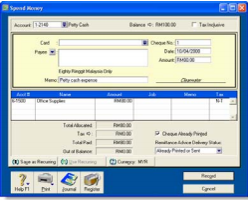
  1. Go to the Banking command centre and click Spend Money. The Spend Money window appears.
  2. In the Account field, type or select the bank account that will be used to make this payment.
  3. Select the Tax Inclusive option if the amount is tax inclusive. Deselect this option if the amount is tax exclusive.
  4. NOTE : Make your selection now. Do not select or deselect the Tax Inclusive option after you type an amount in the Amount field.

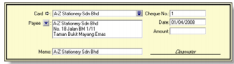
  5. Fill in the information in the cheque area of the window, just as you would if you were writing a paper cheque.
  6. If the transaction is an ATM withdrawal or an electronic payment, type a non-numeric word or phrase to describe the withdrawal in the Cheque No. field. That way you will know the transaction is not an actual cheque when you view it in a list or on a report. This will also allow you to skip the transaction when you print a range of numbered cheques.

  7. If you want to change the default payee address, type or select the payee's address in the Payee field.
  8. Allocate the payment to the correct account
  9. A Type or select the account to which you want to assign the cheque amount.
    B Type the allocation amount.
    C [Optional] Assign the cheque amount to a job by entering the job code here.
    D [Optional] Type a memo for each line item you enter in the transaction.
    E The tax code that is linked to the allocation account appears here automatically. You change or delete it if necessary.
  10. 7 If you want to view or change the tax amounts assigned to the transaction, click the zoom arrow .
  11. If you want to assign the transaction to a particular category, select a category from the Category list. For more information, see 'Categories'.
  12. If your payment covers more than one account, repeat from step 6. You would do this, for example, when paying for the purchase of a number of different items from the same supplier: postage, magazines, stationery, etc.
  13. TIP : Recap transaction Before you record this transaction, you can use the recap transaction feature to view the journal entries that will be created when the transaction is recorded. This is useful for confirming that the journal entries are posted to the correct accounts. To recap, choose Recap Transaction from the Edit menu.

  14. If you are paying by cheque and have already written a cheque, select the Cheque Already Printed option
  15. If you want to send remittance advice in a batch, select an option from the Remittance Advice Delivery Status list.
  16. After you have recorded a number of payments, say, the day's payments, you can print or email remittance advices in a batch. For more information, see 'Sending forms'.

    TIP: Save the payment as a recurring transaction If you want to store the payment as a recurring transaction, click Save as Recurring. In the Edit Recurring Schedule window, enter the necessary information and click Save. For more information, see 'Recurring transactions'.

  17. If you want to print a cheque or remittance advice now, click Print and select the form type you want to print. Note that the payment is recorded before it is printed.
  18. Click Record.

To void a cheque

Follow the steps below to void a cheque that you have not recorded in your MYOB software. If you want to make changes to a cheque you have already recorded, see 'Changing or deleting a transaction'.

  1. Display the Spend Money window and choose the cheque account from which you want to void the cheque.
  2. In the Cheque No. field, type the number of the cheque you want to void.
  3. Leave all the other fields blank.
  4. Click Record and then click OK to confirm that you want to void the cheque.

Entering transactions in the Bank Register window

You can enter the following transactions in the Bank Register window: cheques, deposits, payments to suppliers, payments from customers, sales and purchases.

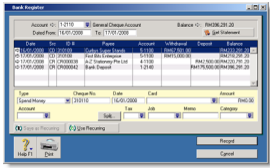
The main advantages of using the Bank Register window to enter transactions are speed and convenience. For instance, unlike a Spend Money transaction, you can record a customer payment, pay a bill and then write a cheque without having to move between multiple windows. The Bank Register window allows you to enter transactions with minimal detail, which can save you time.

To enter a transaction in the Bank Register window

  1. Go to the Banking command centre and click Bank Register. The Bank Register window appears.
  2. In the Account field, type or select the bank or credit card account that will be used for this transaction.
  3. In the lower part of the window, select the type of transaction from the Type list.
  4. Enter a transaction reference:
    • If you select Pay Bill, Spend Money or Enter Purchase from the Type list, enter a cheque number (or other transaction reference) in the Cheque No field.
    • If you select Receive Payment, Receive Money or Enter Sale from the Type list, type a transaction reference in the adjacent ID No. field.
  5. In the Date field, type the date of the transaction.
  6. In the Card field, type or select the name of the card for this transaction.
  7. In the Amount field, type the total amount of the transaction, including tax
  8. If you want to allocate the amount to only one account, type in the Account field the account that will be used for this transaction.
  9. If you want to allocate the amount to more than one account, click Split. The corresponding transaction window will appear, and you can then allocate the amount to multiple accounts of your choice.

    Note that you can also use the Split button to:

    • apply payments to a particular invoice or purchase
    • enter the payment method
    • print the transaction.

    NOTE : When the Split button is not available If the transaction type is Enter Sale or Enter Purchase, the Split button is not available. To open the transaction window, you will need to record the transaction, then click the zoom arrow next to the transaction in the Bank Register window.

  10. If you are entering a sale or a purchase, select the appropriate tax code in the Tax field.
  11. [Optional] Assign the payment to a job by entering the job code in the Job field. This is not applicable for Pay Bill and Receive Payment transactions.
  12. If you want to record the purpose of the transaction, type a description in the Memo field.
  13. If you want to assign the transaction to a category, select a category from the Category list. This is not applicable to Receive Payment and Pay Bill transactions. For more information, see 'Categories'.
  14. To save the transaction as a recurring transaction, so that you can use it again, click Save as Recurring. In the Edit Recurring Schedule window, enter the necessary information and click Save. (Note that this option is available only for Spend Money and Receive Money transactions). For more information, see 'Recurring transactions'.
  15. After saving the recurring template, if you want to record the transaction, click Record in the Bank Register window (or in the transaction window if you clicked Split). If you do not want to record the transaction at this time, click Cancel.

  16. To record the transaction, click Record.

Transferring money between accounts

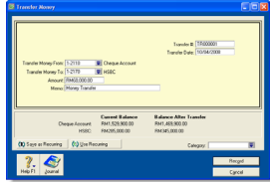
You can transfer money between bank accounts, including bank and credit card accounts, using the Transfer Money window. You can also use this window to record Internet or phone-banking transfers.

To transfer money between accounts

  1. Go to the Accounts command centre and choose Transfer Money. The Transfer Money window appears.
  2. Type a date for the transfer
  3. In the Transfer Money From field, type or select the account from which the funds will be paid.
  4. In the Transfer Money To field, type or select the account into which the funds will be paid.
  5. In the Amount field, type the amount to be transferred.
  6. If you want to record the purpose of the transaction, type a description in the Memo field.
  7. If you want to assign the transaction to a particular category, select the category from the Category list.
  8. TIP: Save the transfer as a recurring transaction If you want to store the transfer as a recurring transaction click Save as Recurring. In the Edit Recurring Schedule window, enter the necessary information and click Save. For more information, see 'Recurring transactions'.

  9. To record the transaction, click Record.

Tracking petty cash expenses

Most businesses keep a small amount of cash handy at the office for miscellaneous expenses - postage, staff amenities, and so on. You can track this petty cash amount separately using a petty cash account and allocating any miscellaneous expenses to that account.

Check your accounts list for an account named 'Petty Cash'. If it doesn't exist, you need to create it. For information on creating an account, see 'To create an account'.

To transfer money to your petty cash account

  1. Go to the Accounts command centre and click Transfer Money. The Transfer Money window appears.
  2. In the Transfer Money From field, type or select the account from which you are transferring money.
  3. In the Transfer Money To field, type or select the petty cash account.
  4. In the Amount field, type the amount.
  5. Click Record.

To allocate expenses to the petty cash account

Let's assume you spent RM80 on stationery from your petty cash float. You would record this transaction in the following way.

  1. Go to the Banking command centre and click Spend Money.
  2. In the Account field, type or select the Petty Cash account.
  3. Type the date and amount of the expense. Enter the expense as a line item and allocate it to the relevant expense account (in this example, the Office Supplies account).
  4. Since you do not need to print a cheque for this transaction, select the Cheque Already Printed option
  5. Click Record.

Reconcile your bank accounts

To ensure the accuracy of your business records, you should keep your record of each bank account balance matched up with your bank's records.

If you are reconciling your bank account for the first time since you started using MYOB software, see 'Do an initial bank reconciliation'.

To reconcile your bank account

NOTE : Reconciling bank accounts using the Company Data Auditor If you are using the Company Data Auditor (see step 3 in 'To run the company data auditor'), select the account you want to reconcile in the Account Reconciliation Review window and click Reconcile Accounts. Continue this procedure from step 3.

  1. Go to the Banking command centre and click Reconcile Accounts. The Reconcile Accounts window appears.
  2. In the Account field, type or select the account you want to reconcile.
  3. In the New Statement Balance field, type the closing balance that appears on the statement your bank sent you
  4. In the Bank Statement Date field, type the closing date that appears on your bank statement, and then press TAB. Only unreconciled transactions dated on or before that date are displayed.
  5. For each entry on your bank statement, select the corresponding transaction by clicking in the select column next to it. The transaction line is highlighted and the amount in the alculated Statement Balance field is updated.
  6. If there are entries on the statement relating to bank charges or bank interest and the entries do not appear among the transactions on the Reconcile Accounts window, you need to manually add these transactions.
    1. Click Bank Entry. The Bank and Deposit Adjustments window appears.
    2. Fill in the appropriate transaction details and click Record. The Reconcile Accounts window reappears.
  7. Click Reconcile. A window appears, indicating whether your account is reconciled or out of balance
    • If your account is reconciled, you can print the Reconciliation report by clicking Print (recommended). Once the report is printed, the Reconcile Accounts window appears. Click Reconcile again to complete the reconciliation process. If you do not want to print the report, simply click Reconcile. The transactions you marked are considered cleared and won't appear in the Reconcile Accounts window the next time you display it
    • If your account is out of balance, the window will indicate the amount by which your account is out of balance, and will provide you with a few ideas as to why this may have occurred. To correct the unreconciled amount, follow the procedure below

To correct an unreconciled amount

  1. Check the following:
    • Did you type the correct figure in the New Statement Balance field? Note that you have to enter the closing balance from your bank statement, not the opening balance.)
    • Did you type the correct date (that of the closing balance from your bank statement) in the Bank Statement Date field? An incorrect date may prevent some transactions from appearing in the list.
    • Did you select all transactions that appear on the bank statement? If not, some transactions might not have been accounted for in the reconciled balance.
    • Did you select a transaction that didn't appear on your bank statement? If yes, you need to deselect the transaction.
    • Did you record all bank charges and bank interest entries that appear on the bank statement? If not, you need to record them and select them for reconciliation.
  2. Repeat the reconciliation procedure 'To reconcile your bank account'.
  3. If your account is still out of balance, then you may have deleted a transaction that has been reconciled previously.

    NOTE : Identifying deleted transactions using the Audit Trail report If you set the Use Audit Trail Tracking preference, you can use the Audit Trail report to search for deleted transactions. This preference must be set before deleted transactions will appear in the report.

  4. If you have deleted a previously reconciled transaction:
    1. Re-enter the transaction into your company file
    2. Select it for reconciliation.
    3. Repeat the reconciliation procedure.

Undoing an account reconciliation

If you have reconciled a transaction in error or deleted a previously reconciled transaction, you can undo the previous account reconciliation. When you undo a reconciliation, all transactions for that period return to an unreconciled status.

If the error was made in a reconciliation earlier than your last reconciliation, you can undo several reconciliation periods in succession in your current financial year.

Note, when you undo an account reconciliation, you will need to reconcile each transaction again and reprint your reconciliation reports.

CAUTION : Purged transactions cannot be re-reconciled Do not undo a reconciliation for a period containing purged transactions.

We recommend that you back up your company file before you undo a reconciliation. Then, if you want to reverse the undo reconciliation, you can restore the backup file.

To undo an account reconciliation

  1. Go to the Banking command centre and click Reconcile Accounts. The Reconcile Accounts window appears
  2. In the Account field, type or select the account for which you want to undo the reconciliation.
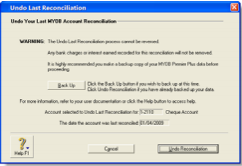
  3. Click Actions and choose Undo Reconciliation. The Undo Last Reconciliation window appears, confirming the account and date of the reconciliation you are undoing.
  4. Click Undo Reconciliation. A confirmation window appears.
  5. Click OK. The Reconcile Accounts window reappears.
    • If you want to add a transaction to your company file, highlight the transaction, click Actions and choose Add Transaction. The Spend Money window or the Receive Money window appears (depending on the type of transaction you are adding). Enter the details of the transaction and record it. The transaction is shown as cleared. Repeat this step for each transaction you want to add.

    CAUTION : Match or add all transactions We recommend you finish adding or matching every transaction in the unmatched transaction list before you click Done. Otherwise, if you re-open the statement file, the original unmatched statement list would appear in the Unmatched Statement Transactions window.

  6. Repeat step 6 for each uncleared transaction you want to add or match.
  7. When you have finished matching and adding transactions, click Done. A list of all the transactions that were cleared appears.

Credit card purchases and payments to credit card providers

Before you record credit card purchases, you need to create a credit card liability account for each credit card you will use. Name the accounts VISA, American Express, etc. These accounts will keep track of the amount owed to the credit card provider. For information on creating an account, see 'To create an account'.

Recording purchases made using a credit card

You record a payment made using a credit card by specifying the credit card account in the Pay Bills, Spend Money or Bank Register window. When you record the transaction, the payment amount is assigned to your credit card liability account

For more information on recording payments, see:

Recording payments to credit card providers

When the time comes to pay your credit card provider, you use the Spend Money window to record a payment from your bank account to your credit card account.

To record a payment to a credit card provider

  1. Go to the Banking command centre and click Spend Money. The Spend Money window appears.
  2. In the Pay from Account field, select the bank account you want to use to make this payment.
  3. In the Card field, type or select the credit card provider's name.
  4. Type the payment date in the Date field.
  5. Type the amount you want to pay.
  6. Type a comment in the Memo field to provide a brief description of the payment you are recording.
  7. In the scrolling list area of the Spend Money window, type or select the liability account you have created to track purchases made with this credit card.
  8. Click Record to record the credit card payment.