3   Advanced setup

When you have created a company file and completed the essential setup tasks, you can start recording transactions in your company file. However, if you want to use the advanced features of your software (such as tracking amounts you owe or the quantity of items sold), you need to complete additional setup tasks. This chapter details the additional tasks.

Overview

The setup tasks you need to complete depend on the features you want to use and whether your business was operating prior to your conversion month.

What features do you want to use'

The following table provides some examples of different setup requirements.

Your needs Setup required
Basic If you only want to use your software to fulfil basic accounting requirements (such as report tax payable or produce a year-end balance sheet), you may only need to do an initial bank reconciliation for each of your bank accounts. Reconciling accounts helps ensure the integrity of the information you record in your company file (see 'Do an initial bank reconciliation').
Intermediate If you want to track the money that you owe suppliers or that are owed by customers, you will need to use the Purchases and Sales command centres. Before you can use these command centres, you need to complete the sales and purchases setup tasks in this chapter.
Advanced If you want to track the on-hand quantity and value of items you buy and sell, you need to create records to store the details of your items. You do this using the Inventory command centre. Also, when you buy and sell an item, you will need to record details about each transaction (such as who you purchased the items from, how many you purchased and the price). You do this using the Sales and Purchases command centres. Hence, you need to complete the sales and purchases setup tasks in this chapter.

When did your business start operating

The setup tasks you need to complete will also depend on whether your business was operating prior to your conversion month.

The following table describes the setup required for new and existing businesses.

Business status Setup required
New If you have just started your business, you may have very little information about your future customers, suppliers, employees and items that you buy or sell. You can add these details later when you have more information. However, if you intend using the advanced features of your software (such as recording invoices or tracking departmental profit), you should read through the setup tasks to see which features you might use and the tasks you need to complete to start using them.
Existing If your business was operating prior to your conversion month, it is likely that transactions that occurred prior to your conversion month still affect your business. For example, a customer may owe you money for sales you made prior to your conversion month, or you may have outstanding bills to pay. You will need to enter these historical details in your company file.

Advanced tasks

You may not need to do every task. An introduction to each task helps you determine whether you need to do the task and, if so, the information you need.

Task
1 Set up sales
2 Set up purchases
3 Do an initial bank reconciliation
4 Create item records
5 Enter your inventory opening balances

Set up sales

Set up sales

You can use the sales features to:

  • prepare sales quotes, orders and invoices
  • generate statements
  • view customer sales history
  • see how much your customers owe you.

NOTE : Do you need to do this task' If you want to record sales and print invoices or statements, you need to set up the sales features.

Before you start using the sales features, you should enter the following information:

  • Credit terms and credit limits - Enter the credit terms and credit limits you generally extend to your customers.
  • Customer details - Create a record for each of your customers and enter such details as their addresses and phone numbers.
  • Historical sales - [Existing businesses only] If customers owed you money on the first day of your conversion month, you will need to record some details about the corresponding sales, such as the invoice date and the amount that is outstanding.

You can use the Sales Easy Setup Assistant to do these tasks. To access the assistant, go to the Setup menu, choose Easy Setup Assistant, and then click Sales.

You can also use the Sales Easy Setup Assistant to specify your preferred invoice layout, the income account you will allocate most of your sales to, and several other settings. These settings will automatically be selected for new customer records you create; however, you can change them as required.

Optional sales setup tasks

In addition to the Sales Easy Setup Assistant tasks, you may also want to do the following tasks if they are relevant to your business.

Task
Customise forms Change the appearance of the default invoice and statement forms
Create job records Create job records to track the progress and profitability of the work you do for your clients.
Group cards Use identifiers and custom lists to group the cards of customers who have similar attributes.

Set up purchases

Set up purchases

You can use the purchases features to:

  • record quotes, orders and bills
  • view your purchase history
  • see what you owe your suppliers.

NOTE : Do you need to do this task' If you want to record the orders and purchases you make with suppliers and track the amounts you owe, you need to set up the purchases features

Before you start using the purchases features, you should enter the following information:

  • Supplier details - Create a card record for each of your suppliers and enter such details as their addresses and phone numbers.
  • Historical purchases - [Existing businesses only] If you had outstanding bills on the first day of your conversion month, you will need to record some details about them, such as the bill amounts and the credit terms.

You can use the Purchases Easy Setup Assistant to do these tasks. To access the Purchases Easy Setup Assistant, go to the Setup menu, choose Easy Setup Assistant and then click Purchases.

You can also use the Purchases Easy Setup Assistant to choose your preferred purchase order layout and several other settings that will help you record purchases faster. These settings will automatically apply to new cards you create for your suppliers; however, you can change them as required.

Optional purchases setup tasks

In addition to the Purchases Easy Setup Assistant tasks, you may also want to do the following tasks if they are relevant to your business.

Task
Customise forms Change the appearance of the default purchase orders and other forms.
Group cards Use identifiers and custom lists to group the cards of suppliers who have similar attributes.

Do an initial bank reconciliation

Do an initial bank reconciliation

To ensure the accuracy of your business records, you should ensure that the record of your bank account balances matches the amounts on your bank statements. This task is called reconciling accounts.

If your business traded prior to your conversion month and you have uncleared banking transactions as of the first day of your conversion month, you need to do an initial bank reconciliation.

Uncleared banking transactions are withdrawals and deposits that have not been cleared by your bank as of the start of your onversion month.

NOTE : Do you need to complete this task' The initial bank reconciliation procedure needs to be done for each bank account that had uncleared transactions as of the first day of your conversion month.

To do an initial bank reconciliation:

Task
1 Identify uncleared withdrawals and deposits
2 Record uncleared withdrawals and deposits
3 Reconcile

Task 1: Identify uncleared withdrawals and deposits

Compare your banking source information (such as your chequebook and deposit book) with your bank statements for the period that includes your conversion date. If you find transactions that have not been cleared by your bank as of this date, you will need to record the details of these transactions in your company file.

For example, in March, the month prior to your conversion month, you wrote a cheque for $510 and deposited $250 you received from a customer. If these transactions had not appeared on a bank statement by 31 March, you need to record both transactions in your company file.

Task 2: Record uncleared withdrawals and deposits

You need to record uncleared transactions in such a way that the opening bank account balance is not affected. To do this, you need to post a debit and a credit of equal amounts for each transaction against the applicable bank account.

To record uncleared withdrawals

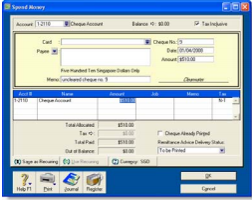
  1. Go to the Banking command centre and click Spend Money. The Spend Money window appears.
  2. In the Account field, type or select the bank account you want to reconcile.
  3. In the Cheque No field, enter a reference number for the withdrawal.
  4. In the Date field, type the first day of your conversion month. For example, if your conversion month is April 2009, enter 01/04/09
  5. In the Amount field, type the amount of the withdrawal
  6. Enter details of the withdrawal in the Memo field.
  7. In the Acct # field, type or select the bank account you want to reconcile. This must be the account entered in step 2 above.
  8. 8 In the Tax field, select the N-T tax code.
  9. Click Record.
  10. Repeat from step 3 above for each uncleared withdrawal.

To record uncleared deposits

  1. Go to the Banking command centre and click Receive Money. The Receive Money window appears.
  2. In the Deposit to Account field, type or select the bank account you want to reconcile.
  3. In the Date field, type the first day of your conversion month. For example, if your conversion month is April 2009, enter 01/04/09.
  4. In the Amount Received field, type the amount of the deposit.
  5. Enter details of the deposit in the Memo field.
  6. 6 In the Acct # field, type or select the bank account you want to reconcile. This must be the account entered in step 2 above.
  7. In the Tax field, select the N-T tax code
  8. Click Record.
  9. Repeat from step 3 above for each uncleared deposit.

Task 3: Reconcile

To reconcile the account

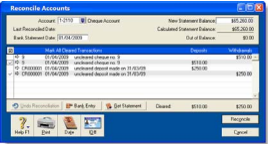
  1. Go to the Banking command centre and click Reconcile Accounts. The Reconcile Accounts window appears.
  2. In the Account field, select the bank account you want to reconcile.
  3. In the New Statement Balance field, type the closing bank balance as of the day prior to your conversion month (for example, the closing balance as of 31/03/2009).
  4. In the Bank Statement Date field, type the first date of your conversion month. (For example, if your conversion month is April 2009, enter 01/04/09.) Your uncleared transactions appear
  5. When you recorded uncleared transactions, the same account was debited and credited with the same amount. Therefore, an uncleared transaction appears as both a deposit and a withdrawal.

  6. For each uncleared withdrawal, click the select column next to the deposit.
  7. For each uncleared deposit, click the select column next to the withdrawal.
  8. When each uncleared transaction is selected, $0.00 appears in the Out of Balance field.

  9. Click Reconcile. A confirmation window appears.
    • To print a report, click Print Report. When the report is printed, click Reconcile.
    • To reconcile without printing a report, click Reconcile
    • To change any details you entered in the Reconcile Accounts window, click Cancel.

Create item records

Create item records

You can use item records to store information about a product and to track the quantities you buy and sell. You can also create records for each type of service you provide.

NOTE : Do you need to complete this task' If you buy and sell items, such as finished goods, components used in production and raw materials, you need to create records for them.

Item records enable you to view the sales and purchase history of the products you sell or use in production. You can determine which items are your best sellers and what you have in stock. This can help you identify sales trends and reorder items before you run out of them.

You can also create item records for the services you provide. This enables you to list the items and services you buy and sell on the same purchase order or invoice.

For example, if you are a plumber, you could set up items for the materials you buy in order to carry out your work. You could also set up item records for the services you provide, such as installation and repairs. You can then record the labour and material charges on the same invoice.

Optional inventory setup tasks

You may want to do the following tasks if they are relevant to your business.

Task
Set up pricing levels [MYOB Premier range only] Customise item pricing according to customer status and sales quantities.
Create locations [MYOB Premier range only] If you hold inventory at several locations, you can keep track of item quantities held at each location.
Group items using custom lists Group and sort items by assigning attributes to your items from custom lists you define.
Create custom fields Set up fields to record additional information about your inventory items.

Enter your inventory opening balances

Enter your inventory opening balances

If you had items on hand as of the first day of your conversion month, and you want to track on-hand quantities and values of these items, you need to enter your inventory opening balances.

Before you enter your opening inventory balances, you need to count the actual items in your inventory. To help you do this, you can print the Inventory Count Sheet report, which lists all your inventoried items, and manually record quantities on it.

To print the inventory count sheet

  1. Go to the Inventory command centre and click Count Inventory. The Count Inventory window appears.
  2. Click Print. The Inventory Count Sheet report is printed with a list of all your items.
  3. Enter all your on hand quantities on this sheet.

To enter opening on hand inventory and values

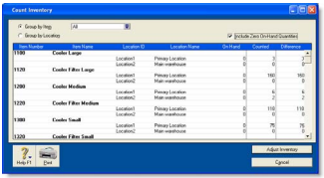
  1. Go to the Inventory command centre and click Count Inventory. The Count Inventory window appears with a list of your inventory items.
  2. [MYOB Premier range only] If you store your items at several locations, select the method you want to use to group your items. You can group items by item number or by location.
  3. [MYOB Premier range only] If you store your items at several locations, select the Include Zero On-Hand Quantities option. A list of all your items appears.
  4. In the Counted column, type the quantity counted for each item. The Difference column will change to show the difference between the On Hand column and the Counted column.
  5. When you have entered all your item quantities, click Adjust Inventory. The Adjustment Information window appears.
  6. When you are entering opening on-hand balances, you do not need to enter a default expense account.

  7. Click Continue. The window that appears depends on whether you have entered an opening balance for your inventory asset account (see 'Enter account opening balances'):
    • If you entered an inventory opening balance, the Adjust Stock window appears.
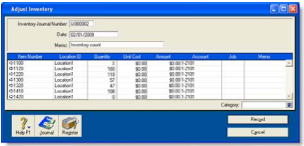
    • If you did not enter an inventory opening balance, the Opening Balance Check window appears. Click Opening Balances and then click Adjust Balances. The Adjust Inventory window appears.

    The Adjust Inventory window displays a line for each itemwhose opening quantity you entered in the Count Inventory window. The line items display each item's number, name, quantity and the account to which the opening balance will be posted. This account is either your inventory asset account, or, if you have not entered an opening balance for your inventory asset account, your historical balancing account.

  8. Enter any changes to the default entries in the Inventory Journal Number, Date and Memo fields.
  9. Type the unit cost of each item (that is, how much a single unit of each item costs you, not how much you are selling it for).
  10. NOTE : Do not change the account number in the Account column. The selection you made at step 6 determines the default account used to record your opening balances.

  11. Click Record. The value of each item in the list is updated.
  12. You can print the Items List Summary report to check your inventory status. For more information on printing reports, see 'Reports'.