NOTE : MYOB Premier range only The following networking information is only applicable to MYOB Premier and MYOB Premier Plus users.
When multiple users access a company file over a network, you need to be aware of factors that affect the way you work that are not present when only a single user accesses the company file. See:
Preferences in a network environment
Some of the choices in the Preferences window of your MYOB software can affect how everyone works with your company file. These preferences are clearly marked System-wide.
Multi-user file locking for daily transactions
Multi-user file locking ensures that changes cannot be made in some windows while related data is being changed by another user in another window.
For example, a situation could arise where a user is recording information in a sales transaction window while another user is changing details of the customer card being used in the sales transaction. In such a situation, multi-user file locking prevents changes being saved in one of the windows until the changes have been saved in the other window.
If you would like to know when another user has changed data in a window, go to the Setup menu, choose Preferences, click the System tab, and select the Automatically Refresh Lists When Information Changes option. Now, if another user changes information you are viewing, your MYOB software closes your window. When you reopen it, the data is updated.
TIP : View a list of users If you have been prevented from accessing the company file, you can identify which user is locking you out. To do this, go to a computer that has access to the company file and view the list of active users (by going to the File menu and choosing Active Workstations).
Single-user file locking for special tasks
Although several users must be able to share a company file for entering daily transactions, there are times when only one user should have access. Many of these tasks are file maintenance procedures such as checking and optimising the company file. For example, optimising a company file rearranges its internal structure, so you do not want someone else accessing the file while this process is taking place. Other single-user tasks are part of bookkeeping practice. For example, when you print a report, you do not want anybody to change data that will appear in the report while it is being printed.
TIP : View a list of users To check whether any other users are currently using the company file, before you set a single-user lock, go to the File menu and choose Active Workstations.
Single-user file locking prevents all but the first logged-in user from accessing a shared company file?other users cannot even log in. To enable single-user access after starting your MYOB software, click Single-user access in the Sign-on window.
The tasks that require single-user file locking include:
- company file verification
- purging data
- starting a new financial year
- creating, changing or deleting report batches
- optimising a company file
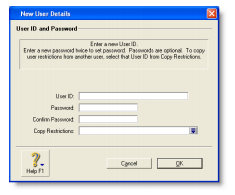
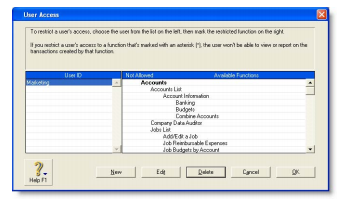
- setting up, changing or removing user accounts
Problems with lock files
To let you know when another user is already accessing a shared company file, your MYOB software displays the File is busy; access denied message when you try, at the same time, to save a transaction or otherwise write data. When you see this message, wait a few moments for the other transaction to finish and for your MYOB software to delete the lock file, and then click Retry.
If the power fails, or you switch off your computer while you MYOB software is running, or your system crashes, your MYOB software is unable to delete the lock file and you need to delete the locked file manually. See 'To delete lock file'. The following situations can cause lock files to accumulate in the folder where the company file is kept, resulting in various error messages when you try to open a company file:
- Someone else is currently signed on with the same User ID Someone else is using the company file with your user ID or a lock file from an irregularly ended session is present.
- No more than ten company files in any folder may be opened at one time
There are more than ten lock files, the maximum permitted?in the folder where the company files are kept. This can occur legitimately if there are more than ten company files in the folder, ten of which are open simultaneously, so that an eleventh open file would create an (illegal) eleventh lock file.
It is unlikely that ten company files in a single folder will be open simultaneously. More likely, ten lock files have accumulated in the folder owing to crashes and other problems.
- You have reached the maximum number of simultaneous users allowed under your MYOB software Workstation Licence
If you know this is incorrect, the problem may be a lock file.
To delete lock files
Any of the above messages may mean that there are old lock files cluttering the folder where you store the company file. You need to delete the lock files before your MYOB software will function correctly.
- Ask all users to close the shared company file and log out of your MYOB software
- Go to the File menu and choose Active Workstations to check whether any users are still logged in. If there are, ensure they have logged out before continuing.
- Log out of your MYOB software
- Navigate in Windows Explorer to the folder where you keep the shared company file.
- Delete all lock files.
- Restart your MYOB software and re-open the shared company file.
Preventing data entry while generating reports
If there are multiple users accessing a company file simultaneously and you want to print or view a report, we recommend that you prevent data changes being made during report generation. If you do not, other users will be able to continue making entries in the company file and your report may not be accurate. If another user changes information that affects the report while it?s being printed or displayed, that particular entry may be indicated by zeros or blank spaces on the report. In addition, new entries that other users make might affect the total amounts on some reports. For this reason, consider printing or displaying the report at a time when you know that no entries are being made that will affect its accuracy.
Before you print or display a report, open the Report Customisation window for the report and select the Prevent Data Changes During Report Generation option (on the Finishing tab of the Report Customisation window). This activates multi-user file locking and prevent other users from adding, changing or removing any information from the company file while your MYOB software is generating the report. When you print or display the report while this option is selected, the report will be up-to-date and accurate.
A few reports take some time to be generated. Consider printing these lengthy reports at times when other users won?t have to wait for the report to be generated before they can resume making entries in the company file.
Storing custom reports on a network
When you create custom reports and forms, information about them is stored on your workstation's hard disk and not on the network. Other users of the same company file won't be able to use your custom reports or forms unless you copy them to the appropriate locations on their workstations. (Your system administrator may need to perform this task.)
Custom reports are stored in the Custom folder and custom forms in the Forms folder. Both these folders are located under the folder where your MYOB software is installed on your workstation.
- The file is named Lock####.flk, where #### represents a number from 0001 to 0010. If there is more than one company file in the same folder, the number allows MYOB software to create a different named lock file for each company file.
Displaying up-to-date information
Each time you open a list window (such as the Find Transactions window) or display a report in the Report Display window, the information that is displayed matches the contents of the company file as of the moment you opened the list or displayed the report.
However, if you keep the list or report displayed on your computer screen for some time, the data that other users entered during that time will not be included in your list or report. You can update the information automatically or manually:
- Automatic update Go to the Setup menu, choose Preferences and then click the System tab. Select the Automatically Refresh Lists when Information changes option.
NOTE : Automatic refreshing slows response Consider whether you need to have on-screen information refreshed automatically. If you choose this option, your MYOB software will operate more slowly for everyone who is accessing the company file. If speedier data entry is a priority, we recommend that you choose to manually refresh information regularly.
- Manual update Go to the Window menu and choose Refresh All. To update an on-screen report in the Report Display window, click Redisplay.
Improving performance
The following list outlines a number of ways in which you can get the most out of your MYOB software:
- Use single-user access whenever possible.
- Optimise your company file frequently, see 'Optimising your company file'.
- Do not select the Automatically Refresh Lists when Information Changes option in the Preferences window
- Do not select the Warn for Duplicate [...] Numbers on Recorded Purchases option in the Purchases tab of the Preferences window.
- Use Easy-Fill when entering card names, account names, and item numbers or names.
- Avoid leaving list windows open.
- Use only a few linked accounts for inventory items.
- Combine line-item quantities on sales and purchases
- Generate large reports when you're the only person using the company file.
Print reports by choosing a specific month instead of by entering a date range.