8   Billing for time

Time billing is only available in the MYOB Premier range.

The time billing feature allows you to track the time spent by employees and suppliers to complete tasks and services (activities) for clients and customers. You can also track incidentals (such as items used) to complete the work.

About the time billing feature

Time billing is suitable for businesses that predominantly sell time (such as accountants and lawyers) and businesses that sell both time and items (such as interior designers and mechanics).

You can establish billing rates based on the activity itself, such as consulting at $40 per hour and photocopying at 10 cents per copy. You can also establish billing rates based on an hourly charge-out rate for a particular employee. For example, employee John Smith's hourly consulting rate may be $60 per hour and subcontractor Acme Industries' charge-out rate may be $80 per hour. You can even set an underlying cost to the activity where, for example, you estimate that the cost to employ John Smith is $45 per hour and Acme is $60 per hour

An activity can be chargeable or non-chargeable. The ability to track non-chargeable activities can be very useful for businesses that want to record such costs as entertainment, which generally cannot be charged to the customer. The activities can be entered individually or grouped together on activity slips. The information can be adjusted quickly to generate time billing invoices, ready to send to your customers. Any items that you have sold to your customers can also be included with the activities in a single time billing invoice.

Time billing reports can be filtered to give you just the information you want. These reports monitor how you and your staff spend their time and whether it is spent profitably.

Setting time billing preferences

You need to set preferences before you start billing for time:

Preference Description
Special billing units Special billing units is a useful feature for organisations that need to track billable time in units of 1, 6, 10, 12, 15 or 30 minutes. The unit of time you select here will be the default billing unit when you create hourly activity slips. For example, you can select six-minute time billing units, where an hour would be 10 billing units of time. Any activity slips you have already created will be updated to use the special billing unit of time
Rounding time in time billing

Time billing allows you to set a preference for how you want units of time to be rounded when you use the timer.

Choose to round up to next, down to previous or to nearest. For example, if you have chosen up to next and are using 30-minute billing units, 10 minutes would be rounded up to 30 minutes on an activity slip. As another example, if you have chosen to nearest and are using 30 minute billing units, 15 minutes would be rounded up to 30 minutes on an activity slip.

If you are not using a special billing unit of time - that is, you are billing in hours - you can specify the rounding increment. For example, if you want to round the actual time you clock using the timer up to the next minute, choose up to next and type 1 in the Minute Increment field. That way, if you clock 21 minutes and 32 seconds of an activity, 22 minutes will be entered automatically in the Units field. Note: If you have specified a special time billing unit and a rounding rule, the Minute Increment field here is redundant and therefore not displayed.

Including items on time billing invoices

If you select the I Include Items on Time Billing Invoices option in the Preferences window, you can include items on your time billing invoice and charge your customers for both activities and items on a single invoice. If this preference is marked, the selection list that appears when entering a time billing invoice includes both your activities and items.

Note that only items for which you have selected the I Sell This Item option in the Item Information window can be included on a time billing invoice.

Timesheets This preference allows you to include time billing and activity slip information in an employee's pay, and to create activity slips when you record employee hours using a timesheet.

To set time billing preferences

  1. Go to the Setup menu and choose Preferences. The Preferences window appears.
  2. Click the System tab.
  3. Select the required time billing preferences and options.

  4. Click OK.

Setting billing rates

You can set billing rates that will automatically appear when you create an activity slip. However, you can override these rates when you create the activity slip. The billing rate can be set for the customer, supplier, or for the activity itself.

For example, for an activity such as the time spent photocopying, you might use a flat rate for all customers, in which case you would use the activity's billing rate. For other activities, you might charge the customer according to the employee who performed the activity, the billing rate depending on factors such as the expertise and experience of the employee.

To set a billing rate for an activity

You can set up a billing rate for each activity regardless of the customer you are billing or the employee or supplier who performed the activity. The billing rate for an activity is set in the Activity Information window (see 'To create an activity').

To set a billing rate for a customers

You can set up billing rates for a customer on their card. This option is useful if you perform the same activities for several customers and want to charge each customer a different rate.

  1. Display the Card Information window for the relevant customer and click the Selling Details tab.
  2. Enter the hourly billing rate for the customer in the Customer Billing Rate field and click OK.
  3. Set the activity to use the customer's billing rate (see 'To create an activity').

To set a billing rate for a supplier or employee

You can set a billing rate for an employee or supplier on their card. This option allows you to bill an activity at different rates according to the employee or supplier performing the activity. You can also track the costs associated with having the activity performed. This is particularly useful if you are subcontracting work to a supplier.

  1. Display the supplier's or employee's Card Information window. Then do the following:

    • Supplier cards - click the Buying Details tab.
    • Employee cards - click the Payroll Details tab and then click Time Billing.
  2. In the Supplier Billing Rate field or the Employee Billing Rate field, type the hourly billing rate, excluding tax, for the supplier or employee.
  3. In the Cost per Hour field, type the hourly cost to you of having this activity performed.

  4. Click OK.

Creating activities

The term activity is used to describe a task or service provided by your business for which you can track costs and bill customers using time billing invoices. Activities are primarily defined by their type - hourly or non-hourly - and whether they are chargeable or non-chargeable.

To create an activity

  1. Go to the Time Billing command centre and click Activities List. The Activities List window appears.
  2. Click New. The Activity Information window appears.

  3. In the Profile tab, type a unique identity code for the activity in the Activity ID field and press TAB.
  4. In the Activity Name field, type a name for the activity.
  5. Enter a description of the activity in the Description field.
  6. If you want the description of the activity to appear instead of the activity name on time billing invoices, select the Use Description on Sales option.
  7. Specify the type and status of the activity.

    For this type... And this status... Do this...
    Hourly Chargeable

    Choose the billing rate you want to use. The rate is the price you charge for one unit of the activity. You can either:

    • use the hourly rate you set up on the card for the customer, supplier or employee, or
    • type a rate for this activity only in the Activity Rate field
    Non-Chargeable Go to step 10
    Non-hourly Chargeable Enter the unit of measurement in the Unit of Measurement field and activity rate in the Activity Rate field.
    Non-Chargeable Enter the unit of measurement in the Unit of Measurement field and then go to step 10.

    The default unit of measurement for hourly activities is Hour. If you specified a special billing unit of time in the System view of the Preferences window, this field will still be displayed as Hour, but time will be billed according to the special billing unit.

  8. In the Income Account field, type or select the account you want to use to track the income you receive for this activity.
  9. In the Tax Code when Sold field, type or select the tax code that you want to appear as the default when you create a sales invoice for this activity.
  10. Click OK. The new activity is listed in the Activities List window.

To change, inactivate or delete an activity

If you want to...
change details of an activity
inactivate an activity
remove an activity from your records

Creating activity slips

Activity slips are used to record activities undertaken for a customer and form the basis for the invoices you send your customer.

You can invoice the full amount for the activity or invoice part of it, leaving the balance to a later date.

You can create an activity slip in three ways.

  • Create a single activity slip. This allows you to enter the most detail about the activity slip
  • Create multiple activity slips. You can enter multiple activity slips at once for an employee, while not entering quite as much detail for each.
  • Create a timesheet. You can enter the hours per day an employee spends to complete work for clients and customers, while automatically creating an activity slip.

    You can also create a timesheet entry by assigning an hourly payroll category to an activity slip.

When you create an activity slip, you can select two cards - one for the employee or supplier who performed the activity for your company and the other for the customer for whom your company performed the activity. If you are creating an activity slip for a chargeable activity, you must enter both cards.

To create an activity slip

  1. Go to the Time Billing command centre and click Enter Activity Slip. The Enter Activity Slip window appears.
  2. In the Activity Slip tab, enter details about the activity, such as the name of the employee who performed the activity, the name of the customer for whom the activity was performed, the activity ID number and the number of units to be charged.
  3. Type any adjustments in the Adjustment fields. Enter the number of units of the adjustment in the first field. You can override the amount of the adjustment that automatically appears in the adjacent field.

    You can enter adjustment units or amounts as negative numbers if you want to indicate fewer hours or a lesser amount.

  4. If you have billed the customer on an invoice for part of this activity, type the number of units already billed in the first Already Billed field. (You can override the amount that appears in the adjacent field.) Your entry is subtracted from the Billable units and amount. The total units and amount that have not been billed yet appear in the Left to Bill fields.

    NOTE : Where Already Billed amounts are recorded If you enter units or an amount in the Already Billed fields of the Enter Activity Slip window, the amount won't appear in the Sales Journal or in the activity's history. It will only be recorded for the activity slip.

  5. [Hourly activities only] If you pay the employee based on the activity performed:

    • Select the Include Hours in Employee's Pay option.
    • Enter an hourly wage payroll category in the Payroll Category field.

    The activity hours (units) recorded for this activity are assigned to this wage category on the employee's timesheet.

    NOTE : Activity hours are assigned to timesheets on the activity slip date When you record the activity slip, the activity hours are assigned to the employee's timesheet on the date entered on the activity slip. If you want to record activity hours over a number of days or pay periods, you need to record the hours in the Enter Timesheets window.

  6. Click Record. The activity slip is now recorded and will appear on reports.

    If you entered a chargeable activity on the activity slip, the activity will be available for billing in the Prepare Time Billing Invoice window.

    NOTE : If you change the view, the activity slip will be recorded If you click the Multiple Activity Slips tab while creating an activity slip and you have entered the minimum required information in the Activity Slip view, the activity slip will be recorded before the new tab appears.

To create an activity slip using the timer

The Enter Activity Slip window has a timer that allows you to record the time you spend on an activity. When you have completed the activity, the information is already in the Enter Activity Slip window, eliminating extra data entry. The timer appears on activity slips for hourly activities only.

To use the timer, you must leave the Enter Activity Slip window open until the activity is completed. You can still use other programs or access other windows during this time.

  1. Go to the Time Billing command centre and click Enter Activity Slip. The Enter Activity Slip window appears.
  2. Enter the employee name, date and customer name.
  3. In the Activity field, type or select an hourly activity ID. The timer fields appear at the bottom of the window.
  4. Click Start to start the timer. If you have not entered a start time in the Start Time field, your computer's current system time appears, and the timer starts incrementing the time in the Elapsed Time field.

    NOTE : Entering a start time that is before the current system time If you enter a start time that is before the current system time, the difference will be added to the elapsed time measured by the timer. For example, if you entered 8:00 a.m. in the Start Time field and then clicked Start at 9:00 a.m., 1:00:00 will appear in the Elapsed Time field and the time calculated by the timer will be added to that amount.

    Leave the Enter Activity Slip window open as you undertake the activity. This allows the timer to track the time you spend on it.

  5. When you have completed the activity, or you want to pause the timer, click Stop.The current system time appears in the Stop Time field. The number of billing units corresponding to the elapsed time appears automatically in the Units field.

    You can edit the start and stop times. The entries in the Actual Units and Elapsed Time fields will be updated automatically.

    You can round your timer entries in the Units field automatically. See 'Setting time billing preferences'.

  6. If you want to resume timing the activity, click Start again. The entry in the Stop Time field will be cleared. The timer will continue incrementing, starting from your current elapsed time.
  7. [Hourly activities only] If you pay the employee based on the activity performed:

    1. Select the Include Hours in Employee's Pay option.
    2. Enter an hourly wage payroll category in the Payroll Category field.

    The activity hours (units) recorded for this activity are assigned to this wage category on the employee's timesheet.

    NOTE : Activity hours are assigned to timesheets on the activity slip date When you record the activity slip, the activity hours are assigned to the employee's timesheet on the date entered on the activity slip. If you want to record activity hours over a number of days or pay periods, you need to record the hours in the Enter Timesheets window (see 'Timesheets' on page 110).

  8. When you have completed the activity, click Record.

    If you entered a chargeable activity on the activity slip, the activity becomes available for billing in the Prepare Time Billing Invoice window.

    NOTE : To reset the timer Click Clear at any time to clear the Elapsed Time, Start Time, Stop Time and Units fields.

Creating multiple activity slips

In addition to being able to create single activity slips, you can also create multiple activity slips simultaneously. In the Multiple Activity Slips tab of the Enter Activity Slip window, one line in the list represents one activity slip. Although this view limits the information you can enter on the activity slip, you can view any activity slip in the Activity Slip view and enter more detail at a later stage.

NOTE : The Multiple Activity Slips view cannot be used to add activity hours to a timesheet In the Multiple Activity Slips view, you cannot choose to include an activity's hours on a timesheet.

To create multiple activity slips

  1. Go to the Time Billing command centre and click Enter Activity Slip. The Enter Activity Slip window appears.
  2. Click the Multiple Activity Slips tab.
  3. In the Employee or Supplier field, type or select the name of the employee (or supplier) carrying out the activity. Any activity slips you have created for the employee or supplier are listed, with each line representing a single activity slip.

  4. On the first blank line, enter details of the activity slip you want to create.
  5. Press TAB or click Record to record the activity slip and move the insertion point to the next line where you can begin creating a new activity slip for the employee (or supplier) you entered in the Employee (or Supplier) field.

    NOTE : Activity slips are recorded as you create them on a line-per-line basis Once you have entered an activity slip and pressed TAB to move to the next line, the activity slip is recorded. If you click Cancel after moving to the next line, the previous activity slip is still recorded. A white zoom arrow (⇨) displayed next to an activity slip indicates that the activity slip has been recorded.

  6. Repeat from step 4 for each activity slip you want to create. When you have entered and recorded all the activity slips you want to create, click Cancel to close the window.

Reviewing and changing activity slips

To review an activity slip

  1. Go to the Time Billing command centre and click Activity Log. The View Activity Log window appears.
  2. Enter the name of the employee or supplier who undertook the activity and, if you know it, the date range within which the activity was undertaken. All activities that match the criteria are listed.
  3. Click the Diary View tab and the Detail View tab to display different types of information about the activity slip. Click the zoom arrow (⇨) next to an activity slip to view the activity slip in the Enter Activity Slip window.

To change an activity slip

If you want to review, edit or delete an activity slip, follow the relevant procedures below.

  1. Go to the Time Billing command centre and click Activity Log. The View Activity Log window appears.
  2. Enter the name of the employee or supplier who performed the activity and, if you know it, the date range within which the activity was recorded. All activities that match the criteria are listed.
  3. Select the activity slip you want to change and then click Edit. The activity slip appears in the Enter Activity Slip window.
  4. Make the required changes either in the Activity Slip view or the Multiple Activity Slips view and click OK or Record.

To delete an activity slip

You can not delete an activity slip that has been billed.

  1. Go to the Time Billing command centre and click Activity Log. The View Activity Log window appears.
  2. Enter the name of the employee or supplier who performed the activity and, if you know it, the date range within which the activity was recorded. All activities that match the criteria are listed.
  3. Select the activity slip you want to delete.
  4. Go to the Edit menu and choose Delete Activity Slip.

    NOTE : Deleting activity slip details in timesheets When you remove timesheet entries with activity slip details, the linked activity slip is also removed.

Creating time billing invoices

There are two ways of creating a time billing invoice:

To create a time billing invoice using the Prepare Time Billing Invoice window

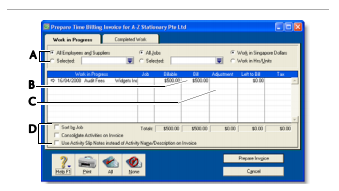
The Prepare Time Billing Invoice window allows you to enter and adjust the billing information for activity slips just as you would in the Enter Activity Slip window. As you make changes in the Prepare Time Billing Invoice window, your activity slip records are updated automatically.

  1. Go to the Time Billing command centre and click Prepare Time Billing Invoice. The Time Billing Customers window appears.
  2. Select the customer for whom you want to create a time billing invoice and click OK. The Prepare Time Billing Invoice window appears, listing any activity slips with billable amounts for the selected customer.

    Label Function Details
    A Filters Use these filters to find the required activity slip(s).
    B Bill Type the amount or number of hours you want to bill for each activity slip here. Any activity slip with 0.00 units or $0.00 in the Left to Bill column is considered billed in full.
    C Adjustment Type any adjustments you want to make in this column.
    D Print Options

    Select the relevant option if you want to:

    • sort activity slips according to job number.
    • consolidate all activity slips with the same activity and job number on the invoice.
    • print the activity slip notes on the invoice.
  3. Click Prepare Invoice. The Sales - New Time Billing window displays the details of the time billing invoice.
  4. If you have selected the I Include Items on Time Billing Invoices option in the Preferences window, you can enter items on this invoice. See 'Setting time billing preferences'.
  5. If you are invoicing for sold items, you can enter:

    • the date in the Date field.
    • the quantity being sold in the Hrs/Units field
    • the item number in the Activity field or press TAB and select the item from the list of items and activities that appears
    • the price of the item in the Rate field
    • the appropriate tax code
    • the job number.
  6. If you want to group and subtotal the items and activities separately on the invoice, you can do so by inserting headers, blank lines and subtotals. For more information, see 'Adding and deleting transaction lines, subtotals and headers in sales transactions'.
  7. Enter additional information about the sale, such as the salesperson, referral source and delivery.
  8. Complete the invoice in any of the following ways:

    • Record the invoice. Click Record to record the invoice but print it later.
    • Print and record the invoice. Click Print and then choose the form you want to use for this invoice. For more information about printing invoices, see 'Sending forms'.
    • Save the invoice as a recurring transaction. Click Save as Recurring. Enter the necessary information about the template in the Edit Recurring Schedule window and click Save. For more information about recurring transactions, see 'Recurring transactions'.

    NOTE : No activity slips for recurring time-billing invoices You can save time-billing invoices as recurring invoices, but no activity slips will be created when you use the recurring sale in the future. Also, recording the recurring sale will not update the activity slips you used to create the invoice in the Prepare Time Billing Invoice swindow.

To create a time billing invoice using the Sales window

NOTE : No activity slips for recurring time-billing invoices You can save time-billing invoices as recurring invoices, but no activity slips will be created when you use the recurring sale in the future. Also, recording the recurring sale will not update the activity slips you used to create the invoice in the Prepare Time Billing Invoice window.

  1. Go to the Sales command centre and click Enter Sales. The Sales window appears.
  2. In the Customer field, type or select the customer you want to invoice.
  3. Click Layout. The Select Layout window appears.
  4. Select the Time Billing option to select the Time Billing layout and then click OK.
  5. For each billable activity enter:

    • the date the activity was performed
    • the number of units or hours being billed in the Hrs/Units field
    • the activity name or press TAB in the Activity field and select the required activity from the list
    • the rate charged for a single unit or hour of the activity in the Rate field
    • [optional] the job number
    • the tax code, if the activity is taxable
  6. If you are invoicing for sold items, enter:

    • the date in the Date field
    • the quantity being sold in the Hrs/Units field
    • the item number in the Activity field or press TAB and select the item from the list of items and activities that appears
    • the price of the item in the Rate field
    • the tax code if the item is taxable
    • the job number.
  7. If you want to group and subtotal the items and activities separately on the invoice, you can do so by inserting headers, blank lines and subtotals. For more information, see 'Adding and deleting transaction lines, subtotals and headers in sales transactions'.
  8. Enter additional information about the sale, such as the salesperson, referral source and comments.
  9. Complete the invoice in any of the following ways:

    • Record the invoice. To recor without printing it, click Record.
    • Print and record the invoice. To print and record the invoice, click Print and then choose the form you want to use for this invoice. For more information about printing invoices, see 'Sending forms'.
    • Save the invoice as a recurring transaction. You can save the invoice as a recurring transaction so that you can use it again in the future. Click Save as Recurring. Enter the necessary information about the template in the Edit Recurring Schedule window and click Save. For more information about recurring transactions, see 'Recurring transactions'.

    NOTE : No activity slips for recurring time-billing invoices You can save time billing invoices as recurring invoices, but no activity slips will be created when you use the recurring sale in the future. Also, recording the recurring sale will not update the activity slips you used to create the invoice in the Prepare Time Billing Invoice window.

Work in progress

Work you have done for your clients that you have not billed yet is called work in progress. Work in progress is indicated on activity slips by a value other than zero in the Left to Bill field.

Your accounting records will only reflect a sales transaction when you bill the activities. However, some accountants consider that, from an accounting perspective, your clients owe you for your work in progress even if you have not yet billed your clients for it.

If your work in progress routinely represents a significant amount of money, you should consider adjusting your accounting records to reflect it. Consult your accountant for advice on how to do this